Open your email and look for our message
Look for an email from Maple Grove Home Care called “Set up your Maple Grove Home Care account”. Tap it to open it.
For patients and families: find your welcome email, log in, sign your forms, and choose your own password.
You will need:
Tap any picture to see it bigger. Tap Close to go back.
Look for an email from Maple Grove Home Care called “Set up your Maple Grove Home Care account”. Tap it to open it.
The email has one link 1. Tap it. You do not need a username or a password – the link signs you in.
Set up your Maple Grove Home Care account
Dear Priya,
Welcome to Maple Grove Home Care. Your Patient Portal account is ready.
Tap the link below to sign in for the first time -- no username or password needed:
demo.homecare.firstsupport-emr.com/welcome/… 1
You'll be asked to choose your own password. After that, sign in with your email address or phone number and that password.
Best regards,
Maple Grove Home Care
(703) 555-0142
office@maplegrovehomecare.example
This is an example. Your email shows your own name.
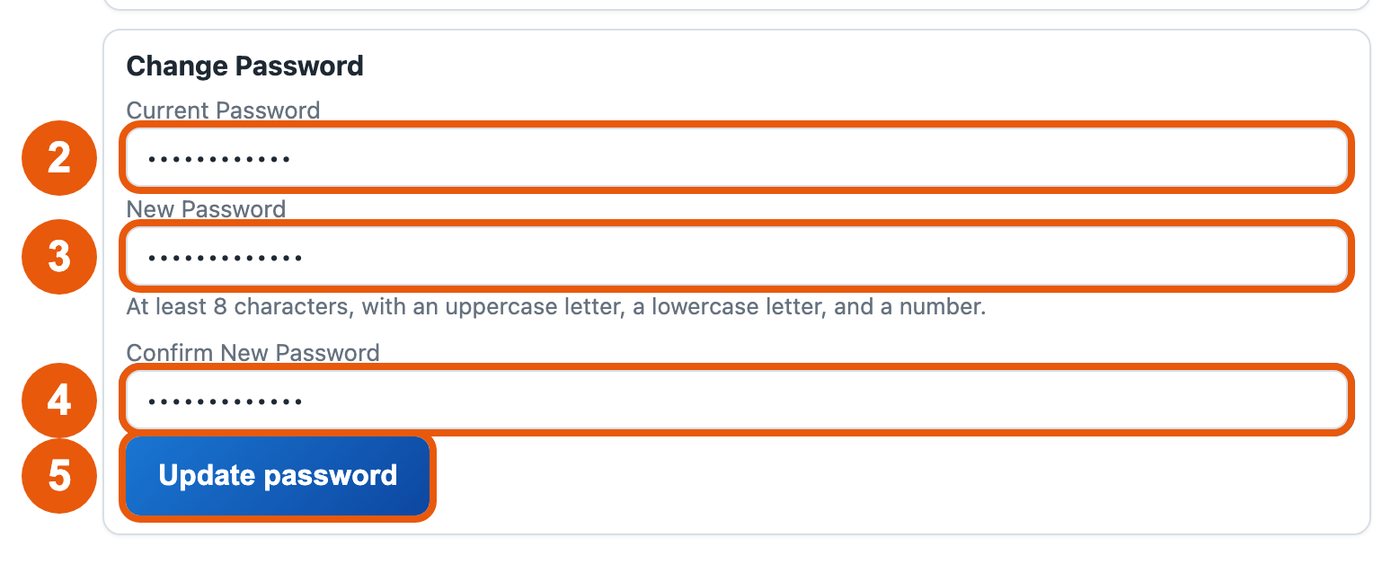
After you tap the link, the portal opens and asks you to choose your own password. Pick one you will remember, type it in both boxes, and tap the button to save it.
That's it – you are in your portal. You will not need the email link again.
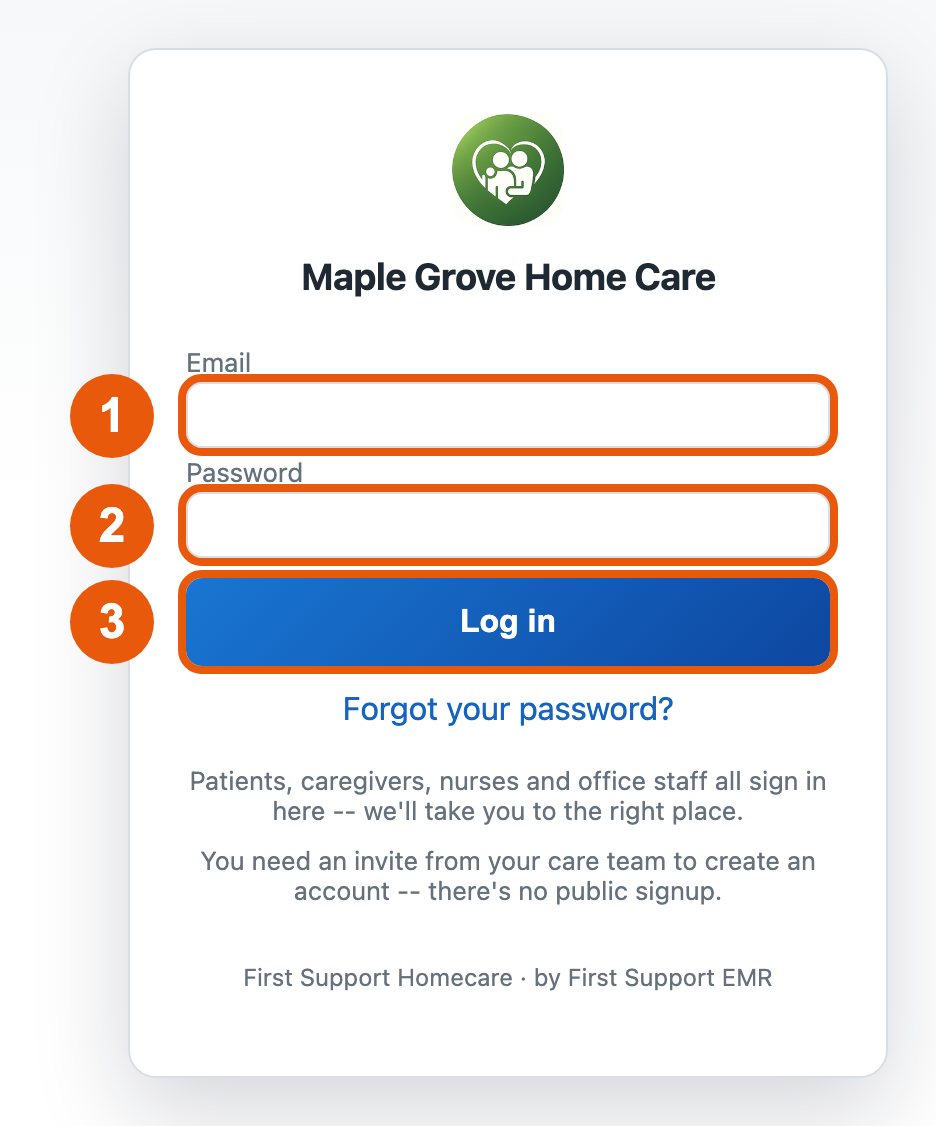
When you come back, open demo.homecare.firstsupport-emr.com and type your email address or phone number 1 and the password you chose 2, then tap Log in 3.

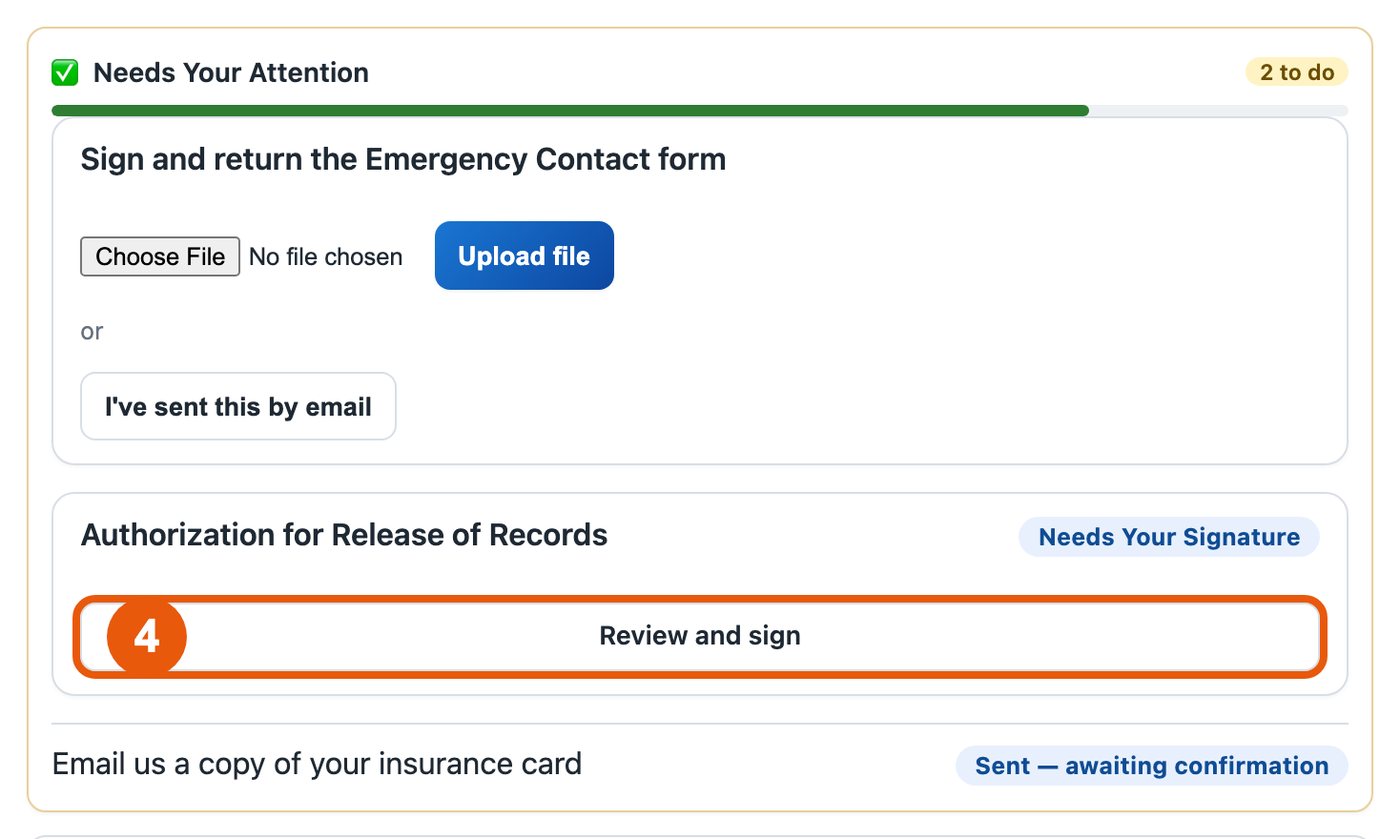
After you log in, you see your home page. Look at the box called Needs Your Attention. Each form that is waiting for you says Needs Your Signature.
Tap Review and sign 4 under the form's name.

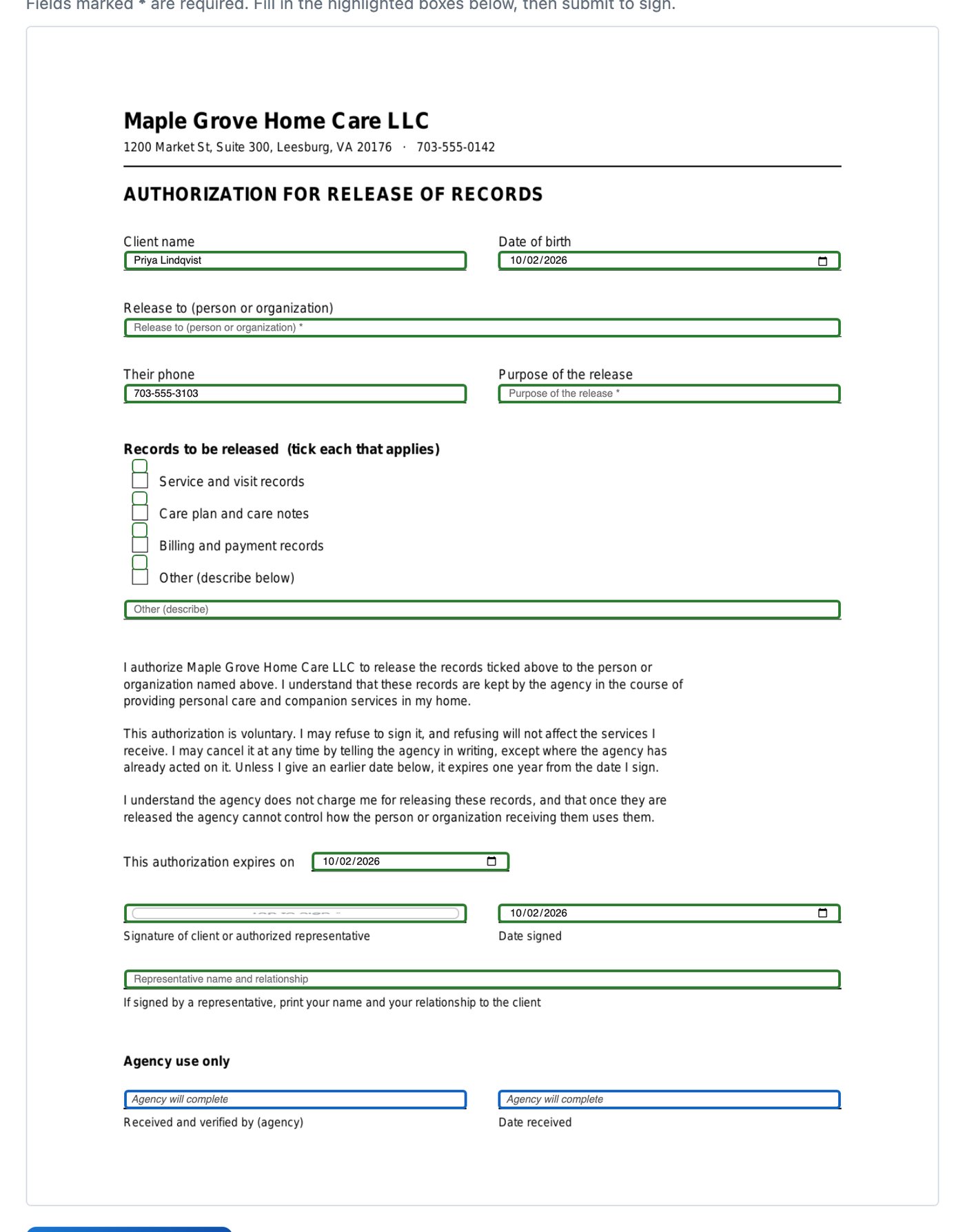
The form opens. Read it from top to bottom. You can move down the page by sliding your finger up, or with the mouse wheel.

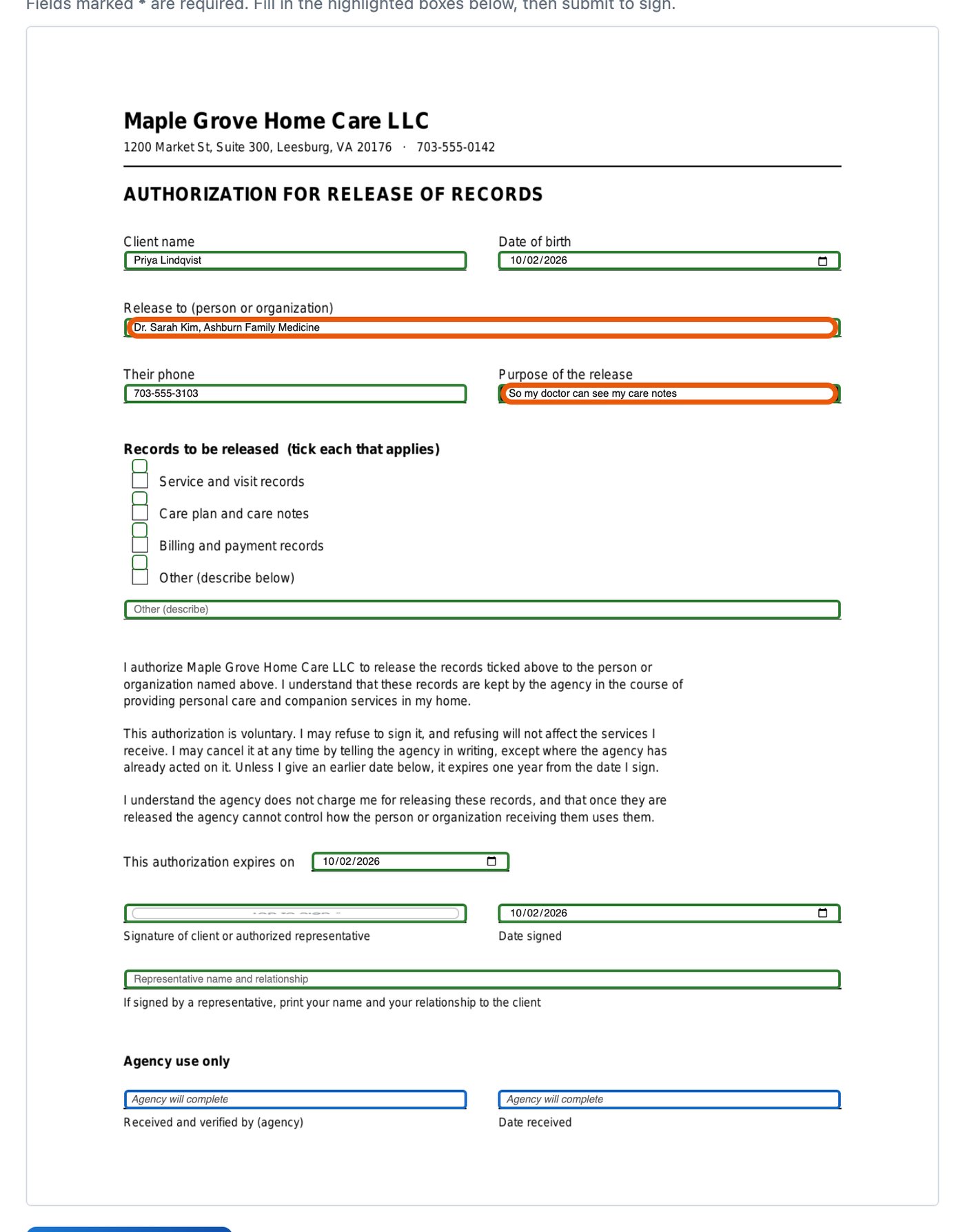
Tap an empty green box and type. The picture shows two boxes filled in (circled). If a box has a small square, tap it to put an X in it, and tap again to take the X away.

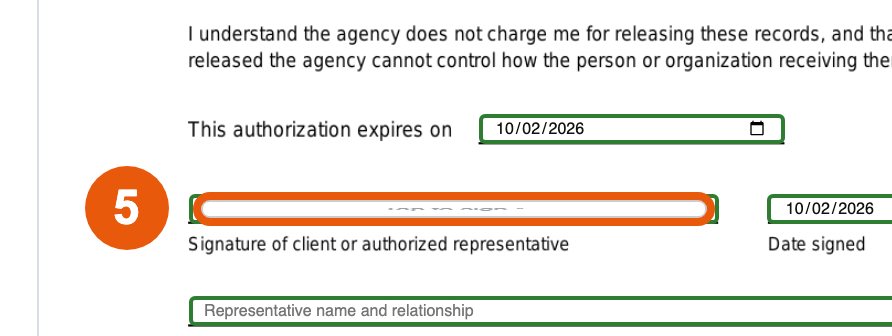
Find the line that says Signature. Tap the box just above it 5. A window opens for your signature.

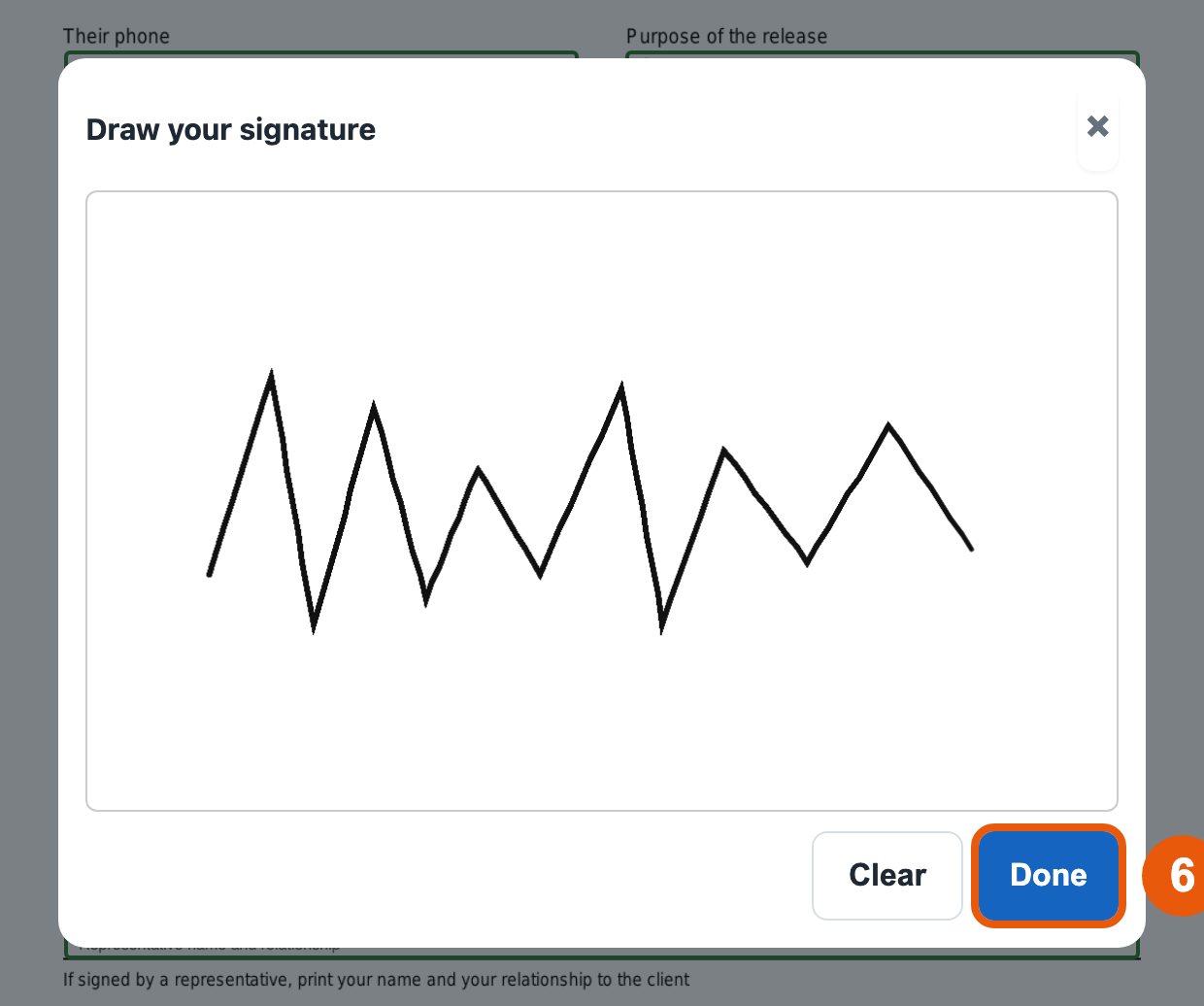
Sign your name inside the white box: with your finger on a phone or tablet, or by holding down the mouse button while you move the mouse on a computer.

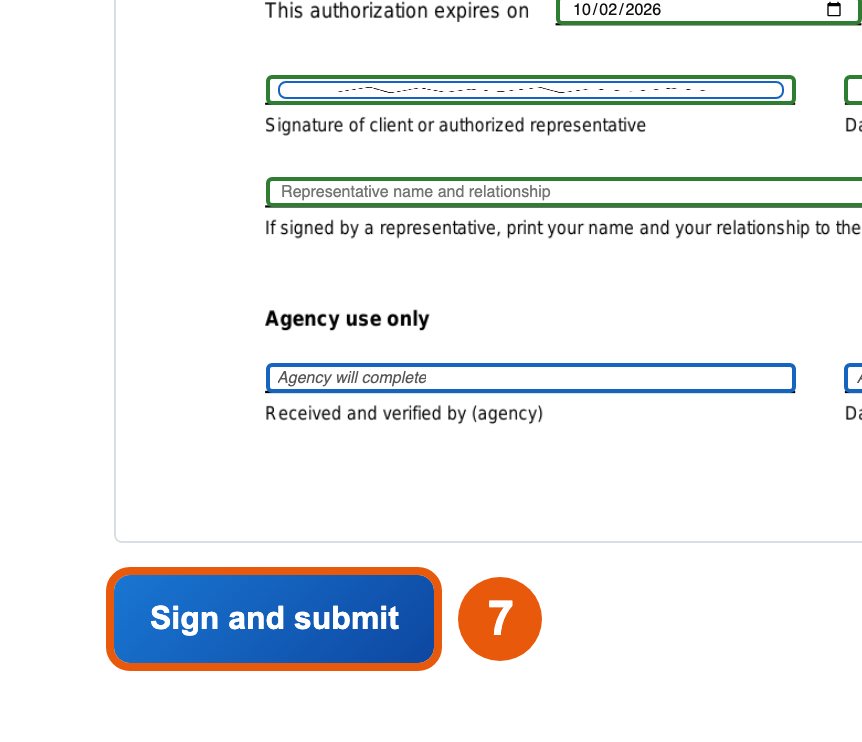
Go to the bottom of the form and tap Sign and submit 7.

You go back to your home page and see “Signed and submitted. Thank you.” at the top.
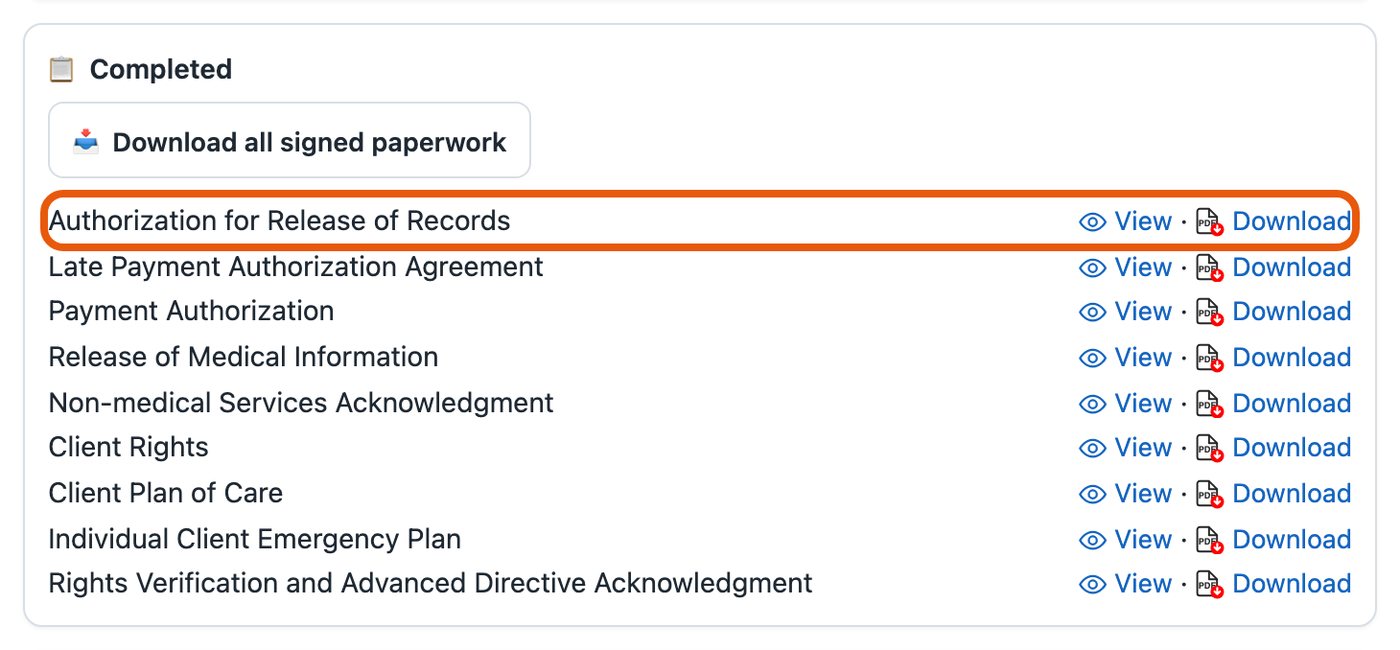
The form now shows under Completed. Tap View to look at it again, or Download to save a copy.
Do the same for any other form in Needs Your Attention.


At the top right of the screen there is a small circle with your initials (the first letters of your name). Tap it 1.

Your new password needs:
A good way: a word you will remember, starting with a capital letter, plus a number. For example Garden + 1958 becomes Garden1958. Please make up your own; do not use this example.

You see “Password updated.” From now on, log in with your new password. The old one will not work any more.

Tap Log out at the top right 6. This is very important on a computer or tablet that other people also use.

The pictures in this guide show an example patient. Your screen shows your own name and forms.