← Back to log in All help topics
Maple Grove Home Care logo

Caregiver login, step by step

For caregivers and aides: find your welcome email, log in, sign your paperwork, and choose your own password.

Prefer to read? Show the written steps

Before you start

You will need:

Tap any picture to see it bigger. Tap Close to go back.

Tip: When this guide says tap, press it with your finger. On a computer, click it with the mouse instead. The orange numbers 1 and circles in the pictures show you exactly where to tap.
Need help?: Take your time. Nothing breaks if you make a mistake, and you can call us at (703) 555-0142. We are happy to go through it with you on the phone.

Part 1 · Find your welcome email

Open your email and look for our message

Look for an email from Maple Grove Home Care called “Set up your Maple Grove Home Care account”. Tap it to open it.

Tip: If you cannot find it, look in the Spam or Junk folder. If it is not there either, call us and we will send it again.
Inbox
Maple Grove Home CareSet up your Maple Grove Home Care account – Dear Marcus, Welcome to Maple Grove Home Care…
PharmacyYour prescription is ready for pickup
Tap the link in the email

The email has one link 1. Tap it. You do not need a username or a password – the link signs you in.

Important: The link works one time and for 7 days. If it says the link has already been used or has expired, call us and we will send a new one.

Set up your Maple Grove Home Care account

Maple Grove Home Care  to me

Dear Marcus,

Welcome to Maple Grove Home Care. Your Staff/Provider Portal account is ready.

Tap the link below to sign in for the first time -- no username or password needed:

demo.homecare.firstsupport-emr.com/welcome/… 1

You'll be asked to choose your own password. After that, sign in with your email address or phone number and that password.

Best regards,
Maple Grove Home Care
(703) 555-0142
office@maplegrovehomecare.example

This is an example. Your email shows your own name.

Part 2 · Choose your password

Choose a password

After you tap the link, the portal opens and asks you to choose your own password. Pick one you will remember, type it in both boxes, and tap the button to save it.

Tip: Write it down somewhere safe at home. Capital and small letters are different: K is not the same as k.

You are signed in

That's it – you are in your portal. You will not need the email link again.

Next time: your email or phone number, and your password

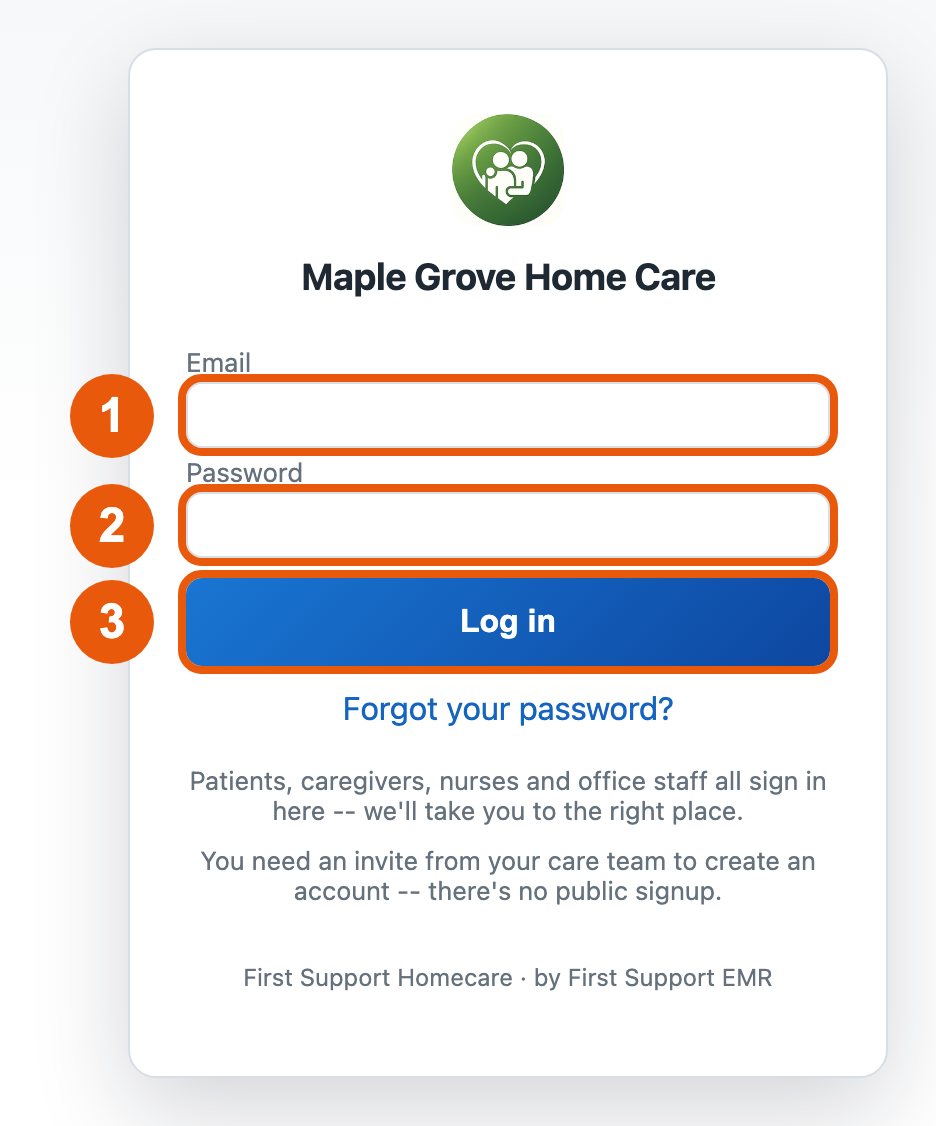
When you come back, open demo.homecare.firstsupport-emr.com and type your email address or phone number 1 and the password you chose 2, then tap Log in 3.

Tip: If it says your email or password is wrong, check for an extra space, and check capital and small letters. Then try again.
The login page with the Email box, Password box and Log in button numbered 1, 2 and 3

Part 3 · Sign your forms

Find the form that needs your signature

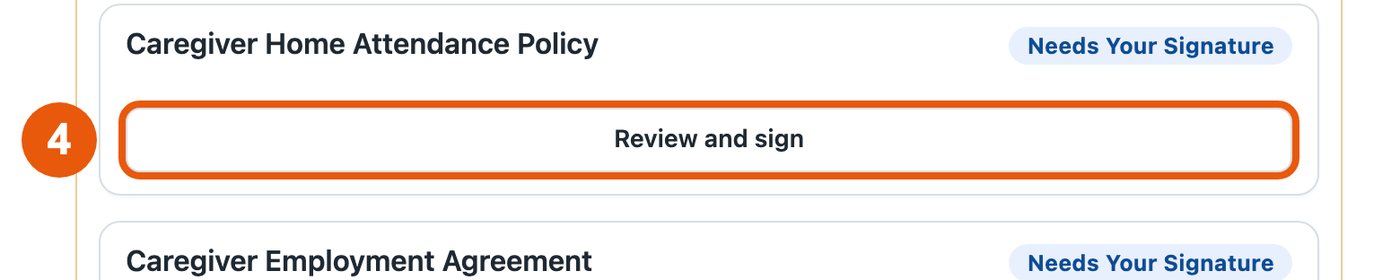
After you log in, you see your home page. Look at the box called Needs Your Attention. Each form that is waiting for you says Needs Your Signature.

Tap Review and sign 4 under the form's name.

Tip: If you have several forms, you may also see a button called Sign all pending forms. It takes you through them one after another.
The Needs Your Attention box with the Review and sign button circled

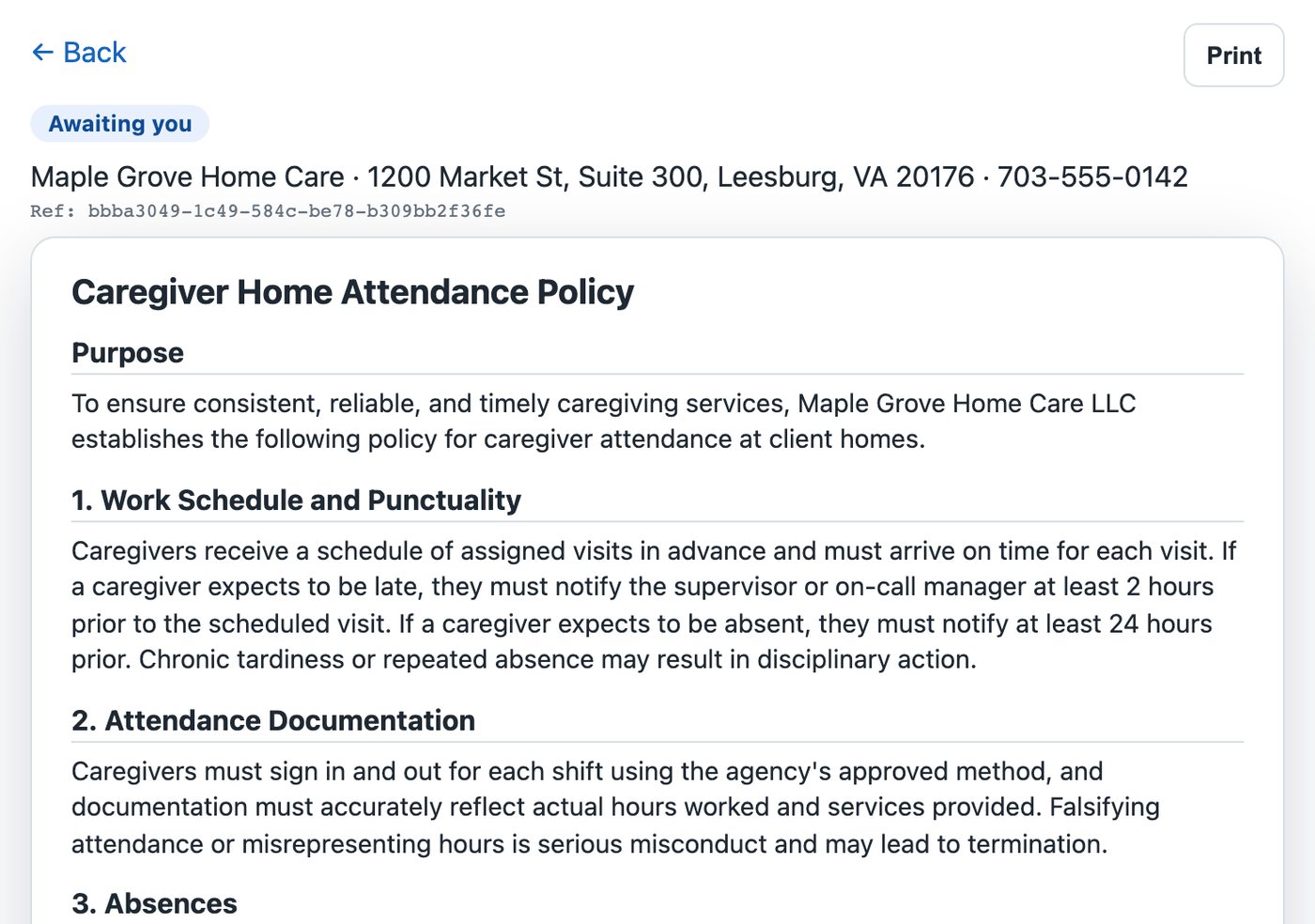
Read the form

The form opens. Read it from top to bottom. You can move down the page by sliding your finger up, or with the mouse wheel.

The top of a caregiver policy form

Sign at the bottom

At the bottom of the form:

  1. Check that Employee Name shows your full name.
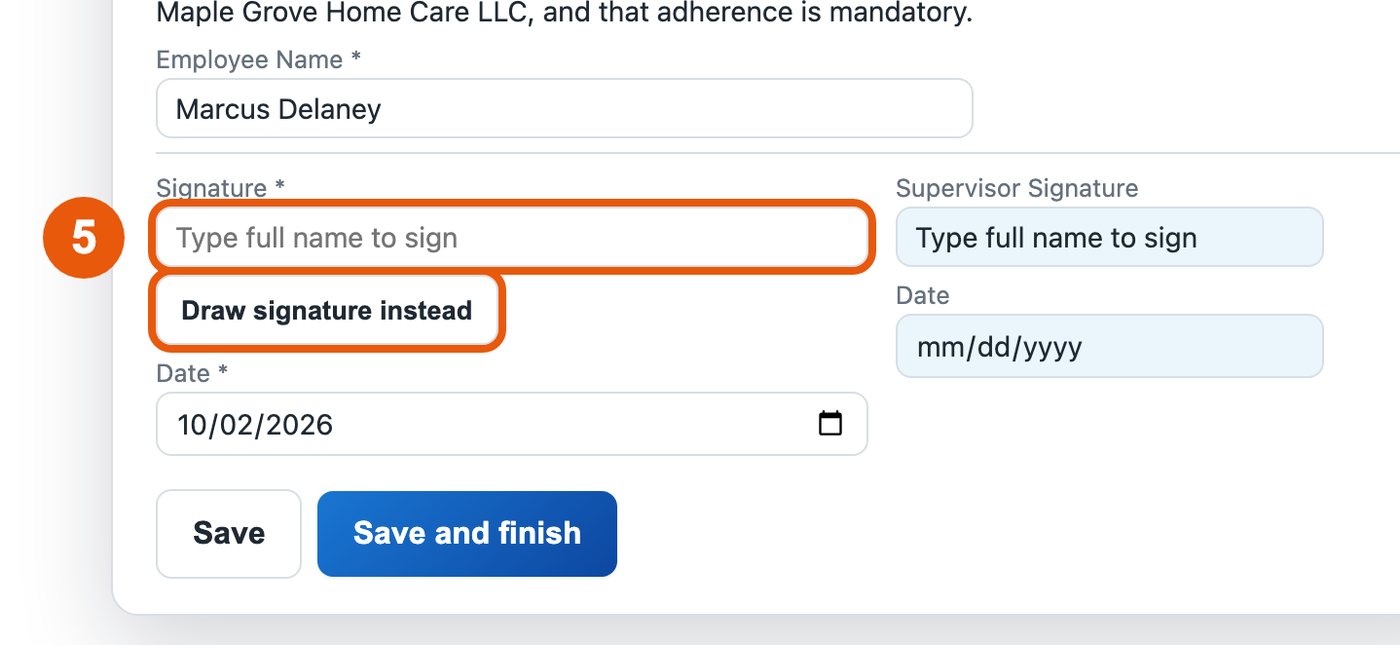
  2. Tap the Signature box 5 and type your full name. That is your signature.
  3. The Date is filled in for you with today's date.

Would you rather sign by hand? Tap Draw signature instead and sign with your finger, or with the mouse button held down.

Important: Leave the Supervisor Signature and its date empty. Our office signs those.
The Signature box circled and numbered 5, with the Draw signature instead button

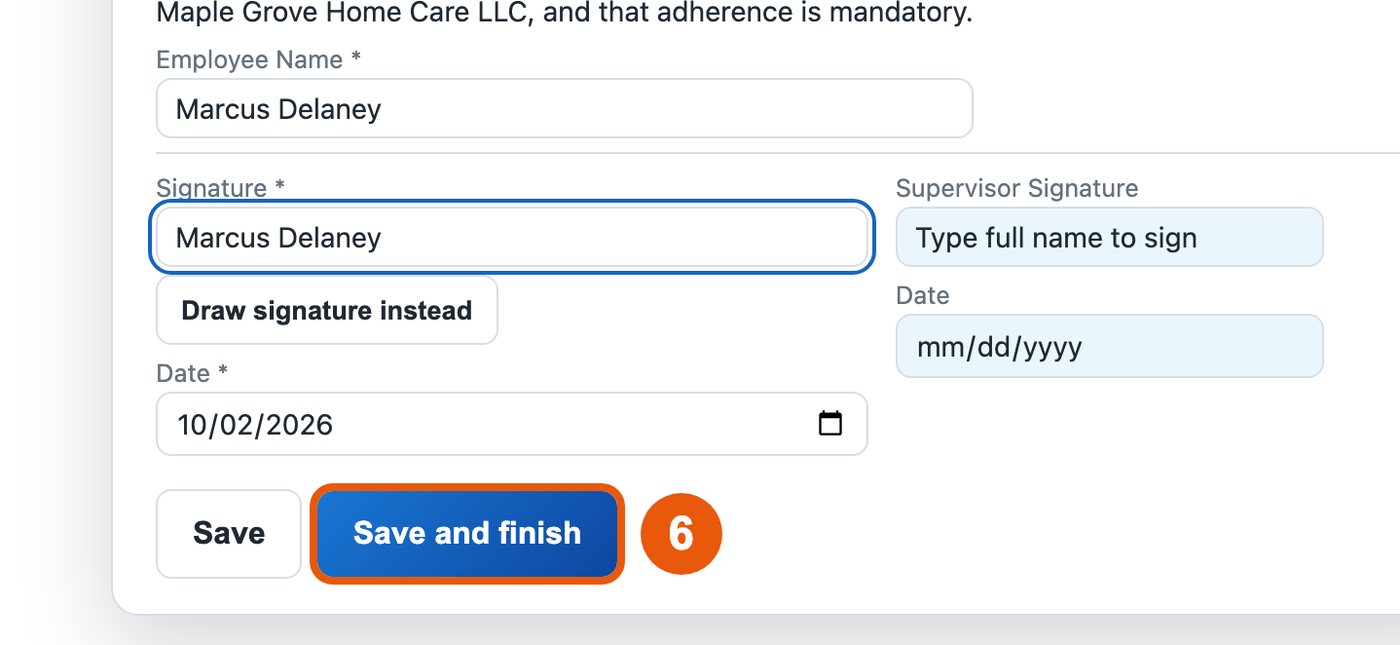
Tap Save and finish

Tap Save and finish 6.

The plain Save button keeps your work without sending it, so you can finish later. Use Save and finish when you are done.

The filled signature and the Save and finish button circled

You are done with that form

You go back to your home page and see “Signed and submitted. Thank you.” at the top.

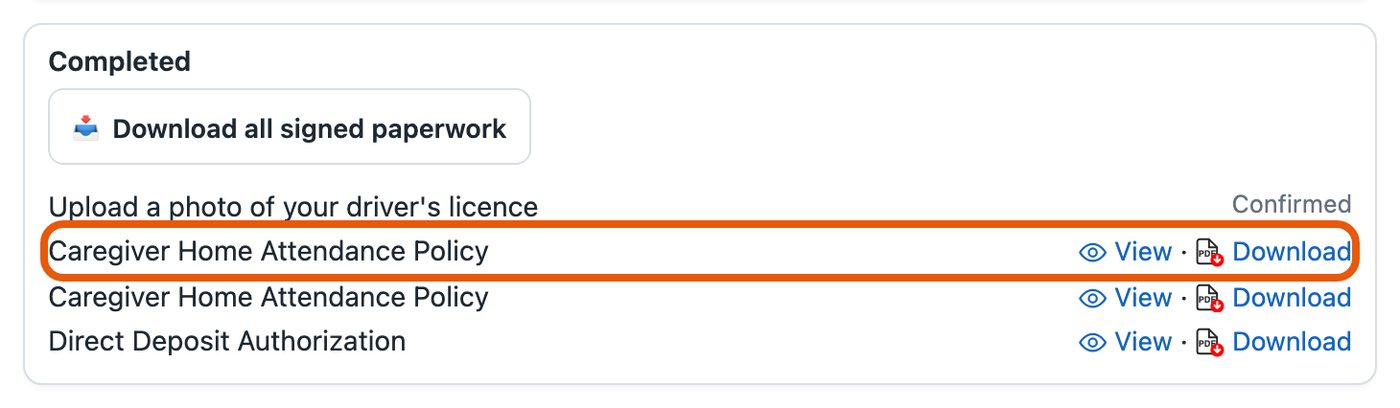
The form now shows under Completed. Tap View to look at it again, or Download to save a copy.

Do the same for any other form in Needs Your Attention.

The message Signed and submitted. Thank you.
The Completed list with the signed form circled

Part 4 · Change your password later

Tip: You already chose your password the first time you signed in. Do this only if you want a new one.

Open your settings page

At the top right of the screen there is a small circle with your initials (the first letters of your name). Tap it 1.

The top of the screen with the initials circle numbered 1

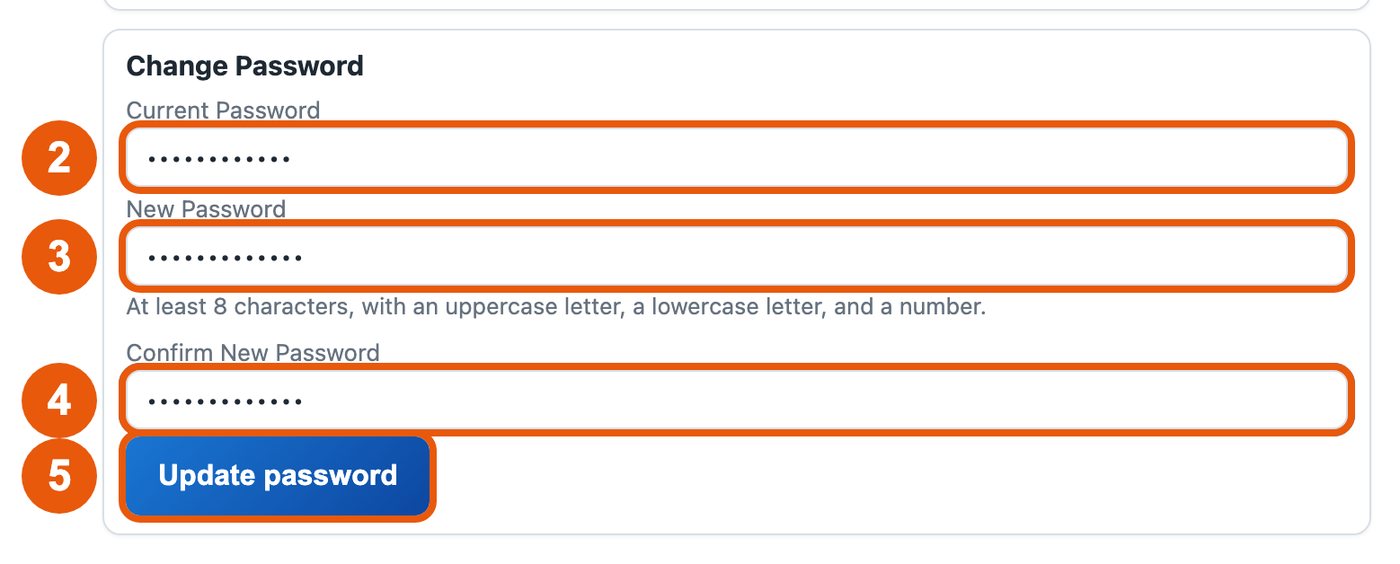
Type your old and new password

On the Settings page, slide down to the part called Change Password.

  1. Current Password 2: type the password you use now.
  2. New Password 3: type the new password you want.
  3. Confirm New Password 4: type the same new password again.
  4. Tap Update password 5.

Your new password needs:

  • at least 8 letters and numbers in total,
  • at least one capital letter (like S),
  • at least one small letter (like s),
  • at least one number (like 7).

A good way: a word you will remember, starting with a capital letter, plus a number. For example Garden + 1958 becomes Garden1958. Please make up your own; do not use this example.

Important: Write your new password on paper and keep it somewhere safe at home. Never give it to anyone.
The Change Password boxes numbered 2 to 4 and the Update password button numbered 5

Check that it worked

You see “Password updated.” From now on, log in with your new password. The old one will not work any more.

Tip: If it says the passwords don't match, the two new passwords were typed differently. Type both again, slowly.
The message Password updated.

Part 5 · Log out

Tap Log out when you are finished

Tap Log out at the top right 6. This is very important on a computer or tablet that other people also use.

The top of the screen with the Log out button numbered 6

Next time you log in

  1. Open the welcome email and tap the blue link, or type demo.homecare.firstsupport-emr.com at the top of your internet browser.
  2. Type your email address and your new password.
  3. Tap Log in.
Tip: Save the page so you do not have to look for the email next time. On a phone, tap the Share button and choose Add to Home Screen. On a computer, press Ctrl + D (Command + D on a Mac) to bookmark it.

If something goes wrong

Need help? Call us and we will walk you through it, step by step.
(703) 555-0142
Or email office@maplegrovehomecare.example

The pictures in this guide show an example caregiver. Your screen shows your own name and forms.